
Worked example / Square Photo Padder
Make photos square without cropping
A square crop can cut off the edges of a wide photo or the top and bottom of a portrait. Padding adds space around the image instead. Here is a complete example, followed by a safe way to process a folder.
What changes in the example?
The starting image is 1536 × 1024 pixels. With Original size and a black background, Square Photo Padder exports a 1536 × 1536 JPEG: 256 pixels of padding above and 256 below. The whole photograph remains visible.
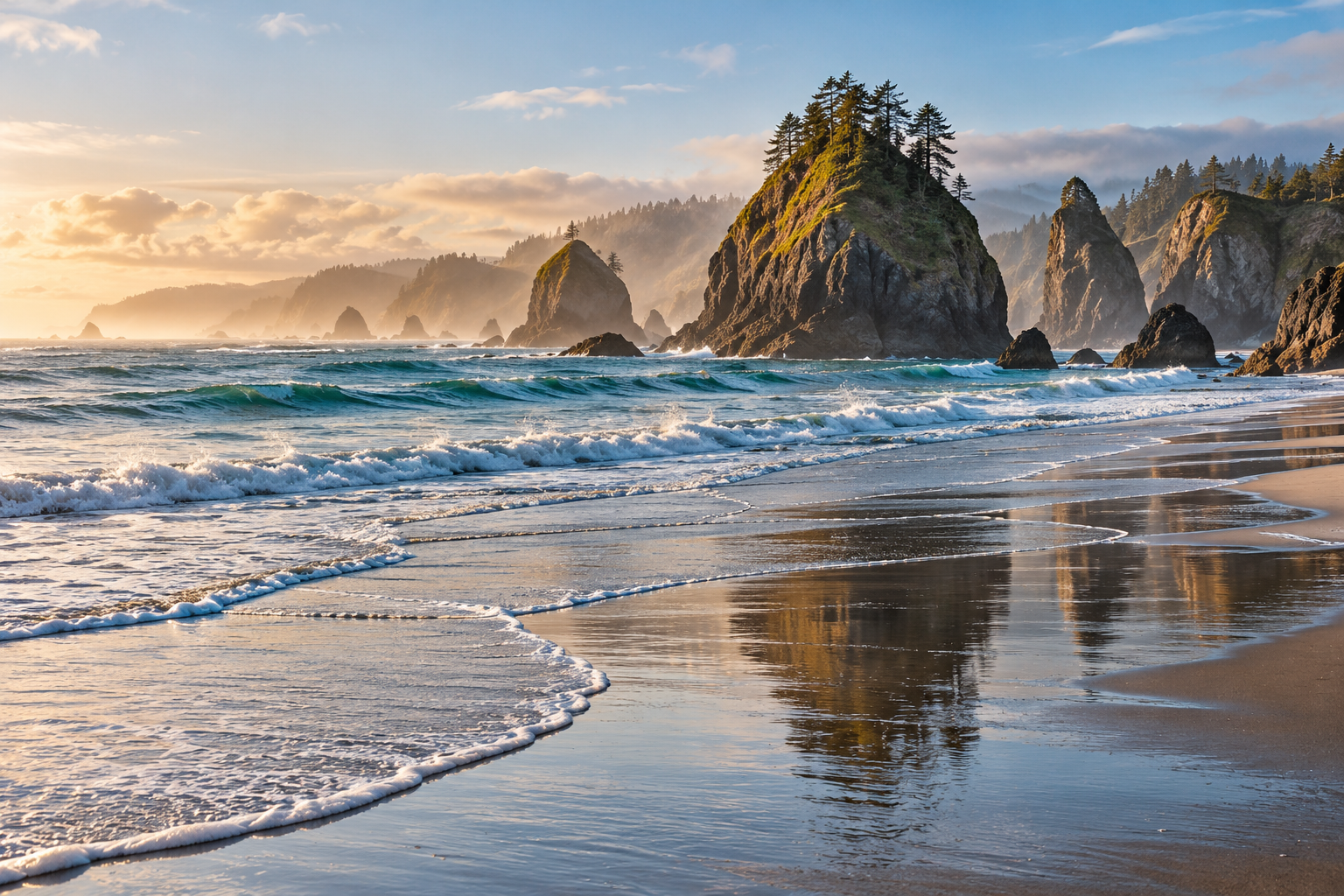
Before · 1536 × 1024 PNG
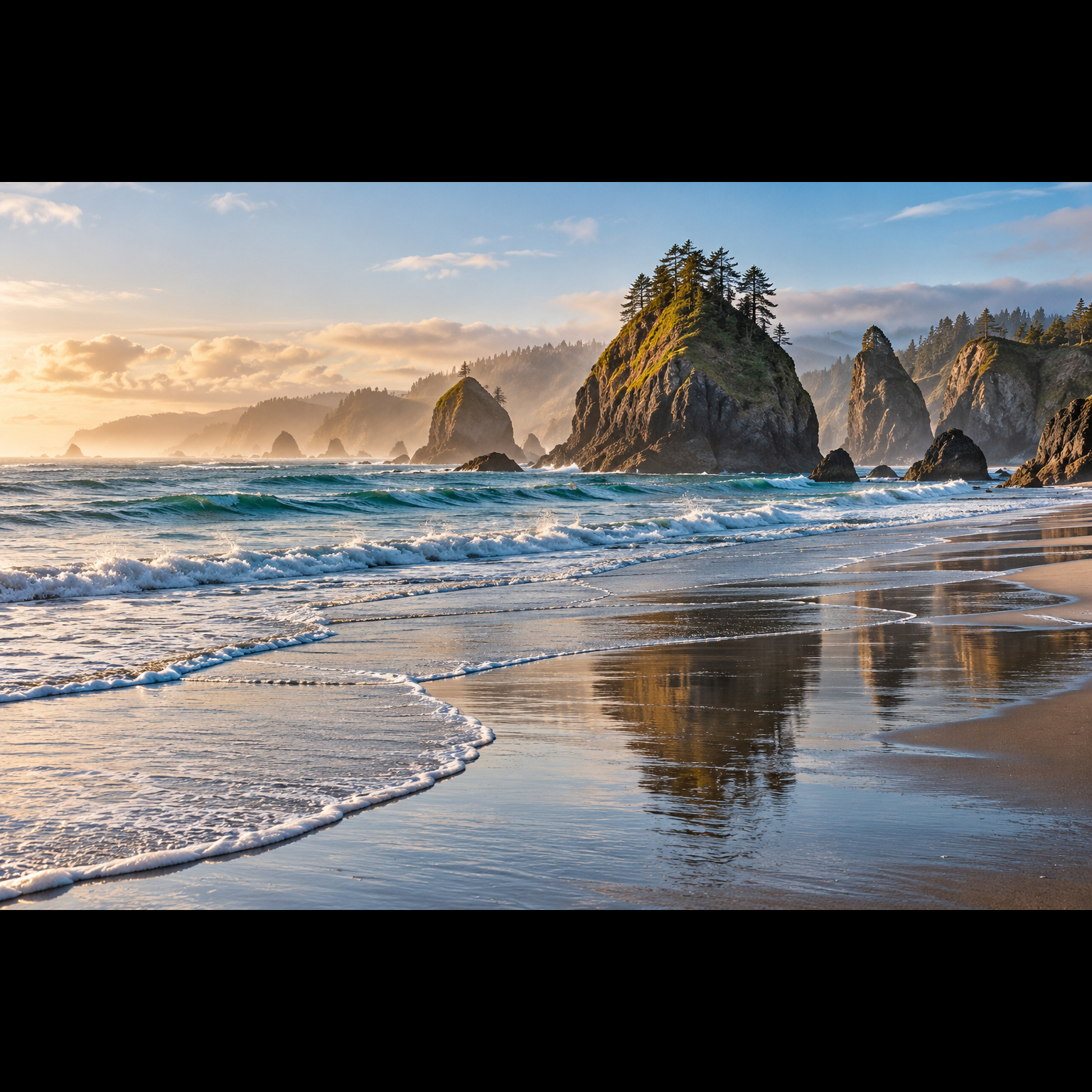
After · 1536 × 1536 JPEG
Open the original image · Inspect the square JPEG
Padding preserves the composition, but JPEG export re-encodes the image. Keep your original when you need its original format, transparency or exact image data.
Make one photo square first
Open the app and add a photo.
Download Square Photo Padder for your system, follow its setup notes, then choose Add Photos. Start with a copy of a JPEG or PNG you can inspect easily.
Choose the canvas and background.
For the example above, select Original, choose black under Background, leave the watermark text empty, and keep Overwrite off. Original keeps the photo’s resolution within the app’s image limits. A numbered size sets a maximum square side; smaller images are not upscaled.
Check the preview, then save.
Confirm the whole subject is visible and the padding is the color you want. Choose Save Photo to save the displayed image. With Overwrite off, the app creates a numbered JPEG copy beside the source, such as
photo (1).jpg.Inspect the actual file.
Open the saved JPEG in your normal image viewer. Check its dimensions, edges and appearance. A successful preview is a useful check; the exported file is the result you will share.
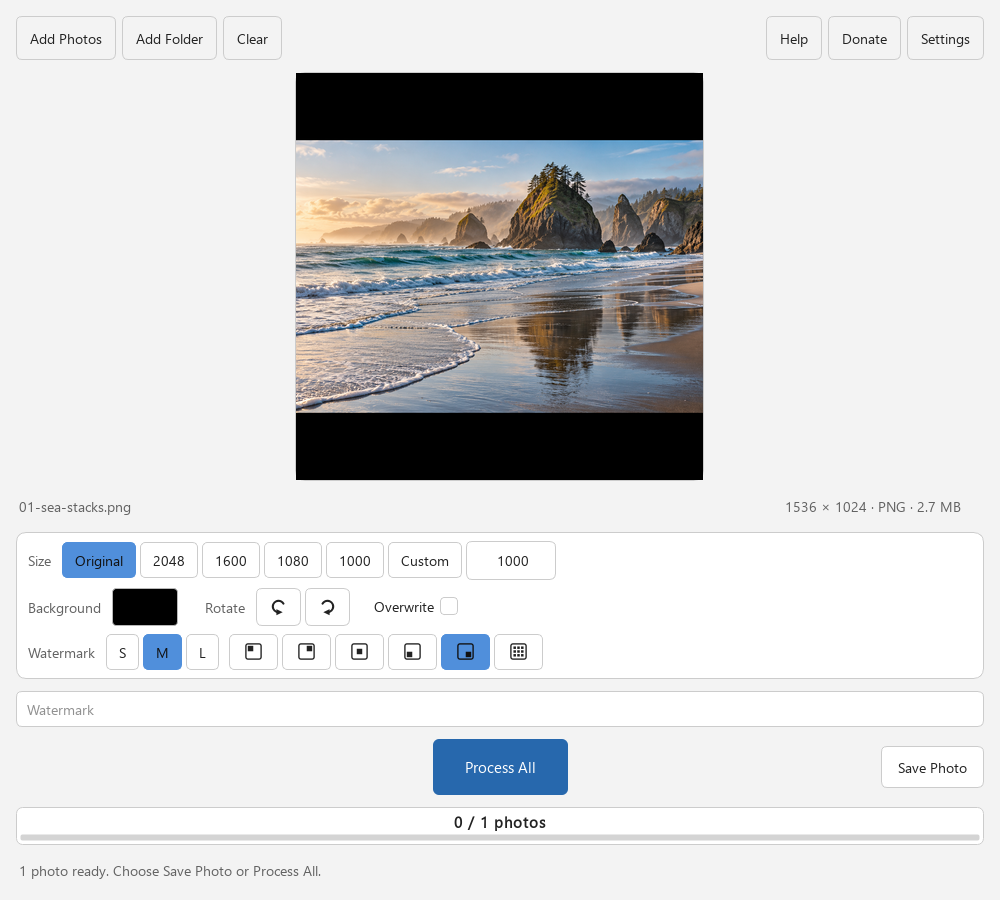
Then process a folder
Choose Clear after your trial, then Add Folder for the batch. Folder import includes supported photos in subfolders, so check the loaded set before continuing. Browse representative wide and tall photos and confirm the current size, background and watermark choices.
Keep Overwrite off to create JPEG copies beside the originals, then choose Process All. Check the final saved and failed counts and inspect a few exported files. The action becomes Cancel while processing; cancellation finishes the current photo before stopping the remaining work.
Use a separate working folder if you want the generated JPEGs together. Avoid loading previously squared output into the next batch unless you intend to process it again.
When padding is the right choice
Use padding when you need a square image and want to retain a portrait or wide composition. Use a crop when filling the square edge to edge matters more than keeping every edge of the original.
Check the destination’s current image requirements before uploading. A square canvas, added borders or a watermark may be unsuitable for a particular marketplace. The app’s pixel sizes are size choices, not marketplace compliance presets.
The photo processing happens on your computer. You download the desktop app; you do not upload photos to this website.